 Joseph Zikusooka
5c93c89b4d
Joseph Zikusooka
5c93c89b4d
|
||
|---|---|---|
| graphics | ||
| .gitattributes | ||
| CHANGELOG.md | ||
| FUNDING.yml | ||
| LICENSE | ||
| README.md | ||
| jambulaOS-202605-211547-img.7z | ||
README.md

Jambula OS is a lightweight, free, and open source Linux operating system customized for deployment on embedded single board computers (SBCs), such as the popular Raspberry Pi.
This stable and efficient distribution is the ideal foundation for tech enthusiasts, developers, and the DIY/maker community especially those in the smart home space.
Designed for maximum resilience in internet or power challenged areas, Jambula OS prioritizes a 'local-first' architecture ensuring your projects and data remain reliable, even when the connection goes offline.
It is designed for low resource hardware and provides out-of-the-box support for essential features like Wi-Fi hotspot networking and a file sharing collaboration platform.
Read more about it at: https://jambula.org
Pre-requisites
Currently, Jambula OS Linux is a console only platform running several open source and popular software services. There's an initial ncurses style based setup program that allows you to configure the functions that will be provided by your Raspberry Pi. However, in order to use it effectively, you need to already be familiar with using Linux on the command line interface (CLI).
You will also need a Raspberry Pi 5 along with all required boot accessories, including an SD card of at least 8 GB.
Supported Boards
- Raspberry Pi 5 Model B Rev 1.0
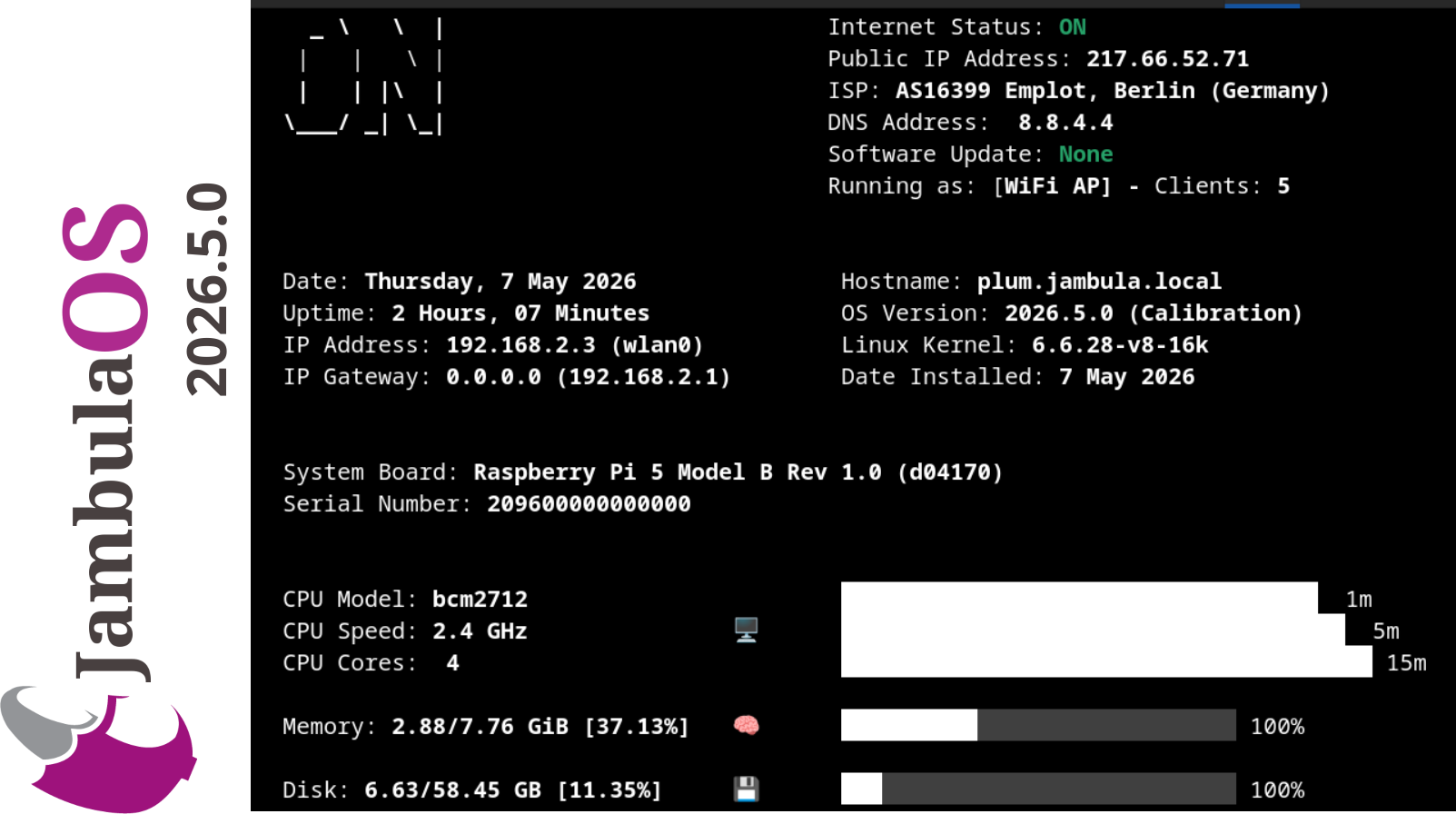
How to quickly get started
-
Download the latest Jambula OS image located at:
-
Extract the above image to a temporary directory using p7zip tool (https://www.7-zip.org/download.html)
Example:
cd /tmp
7za e jambulaOS-202605-211547-img.7z
-
Burn the resulting image i.e. sdcard.img to your SD card using a tool such as dd
For example: If your SD card is mounted at /dev/sdb enter the following command line:
dd status=progress if=/tmp/sdcard.img of=/dev/sdb
-
Insert SD card into your raspberry pi and power it on
-
Upon initial boot, Jambula OS will present crucial setup information on the Linux console, including details for connecting to the temporary Wi-Fi hotspot and the necessary SSH connection command
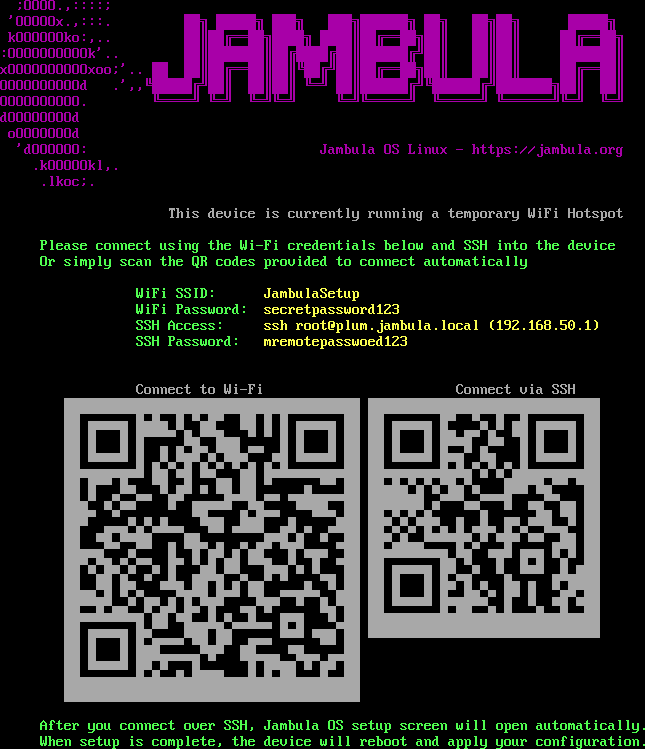
- After establishing the remote SSH connection, you will be automatically presented with a setup wizard to begin configuring Jambula OS.

**NOTE:**For the optimal setup experience, it is recommended to initiate the process via an SSH connection established from a remote graphical Linux desktop environment like GNOME, KDE, XFCE etc.
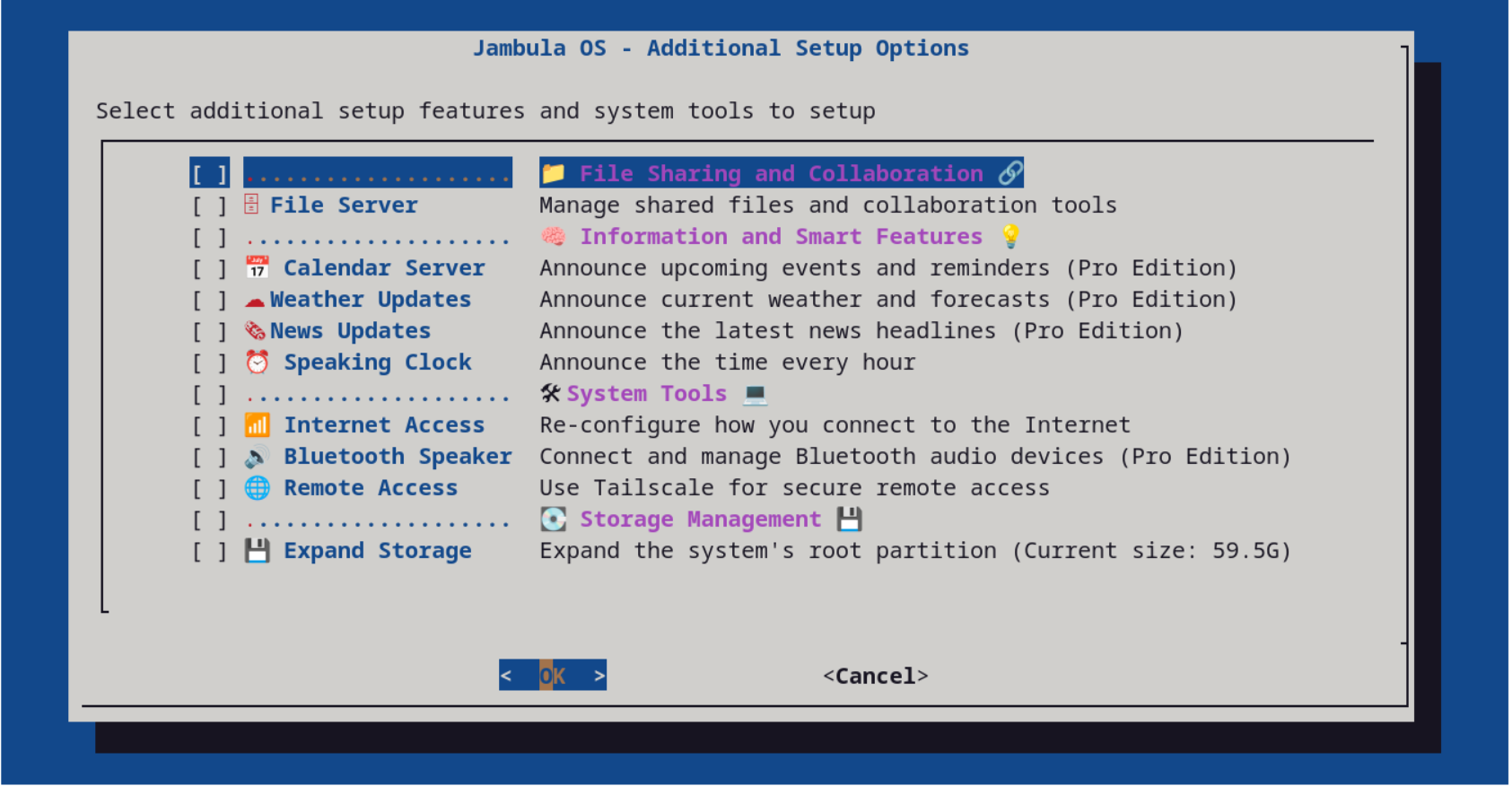
- Once you successfully navigate the simple setup wizard, the system will perform an automatic reboot, and Jambula OS will be fully configured and ready for use. TIP: To run the setup menu again, use the command line tool: jambula-setup
-
Feel free to contribute to Jambula OS by filing detailed bug reports and submitting code enhancements via Pull Requests directly to our Git repository.
-
Finally, if you like were this is going and are able, please support my work by making a contribution today. Check out the FUNDING file for details. You can also contact me via email using: zik AT jambula.org
Home-Assistant
Starting with October 2024 releases, support for Home-Assistant is included in this image. This means you can now use the setup menu to perform local installs and upgrades of Home-Assistant core. The current release includes version 2025.12.0. However, you can also upgrade to the latest upstream versions once you are connected to the internet.
TO DO
-
Raspberry Pi 4 and 3 series hardware support
-
Photo management
-
Network and device monitoring
-
Support for x86_64 platform
IMPORTANT: Support Jambula OS
Your financial support can help sustain and improve Jambula OS. Please consider contributing to this project! Check out the FUNDING file for details or contact me direct via email using: zik AT jambula.org